Warehouses, aisles, shelves and bins
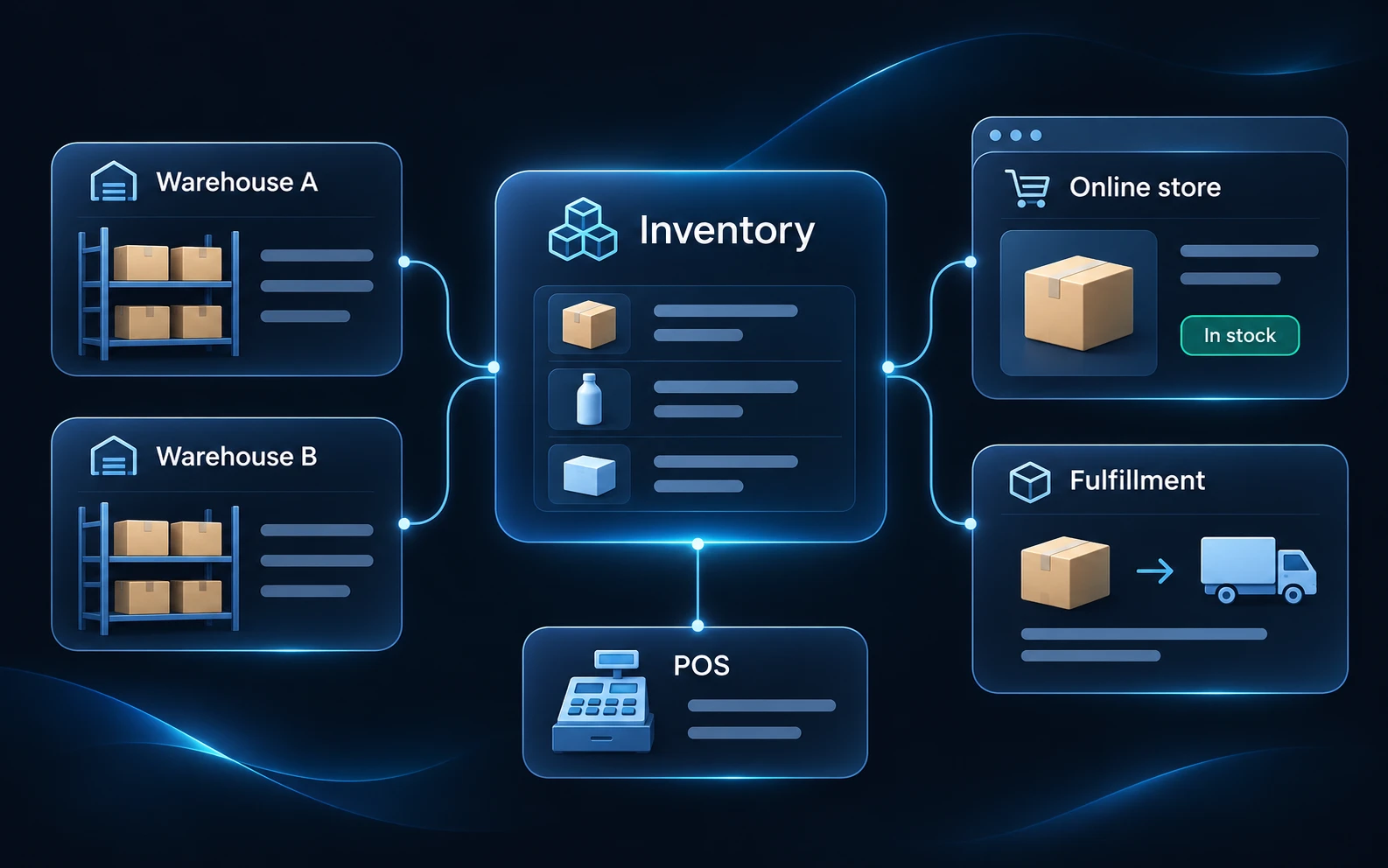
Map where everything is kept, with a printed label code for each place, a default receiving location and stock tracked at every one.
Keep every part and product you stock in one place: how many you have at each location, what came in and went out, what it is worth, and what to reorder. Every change is recorded, so the numbers can be trusted.
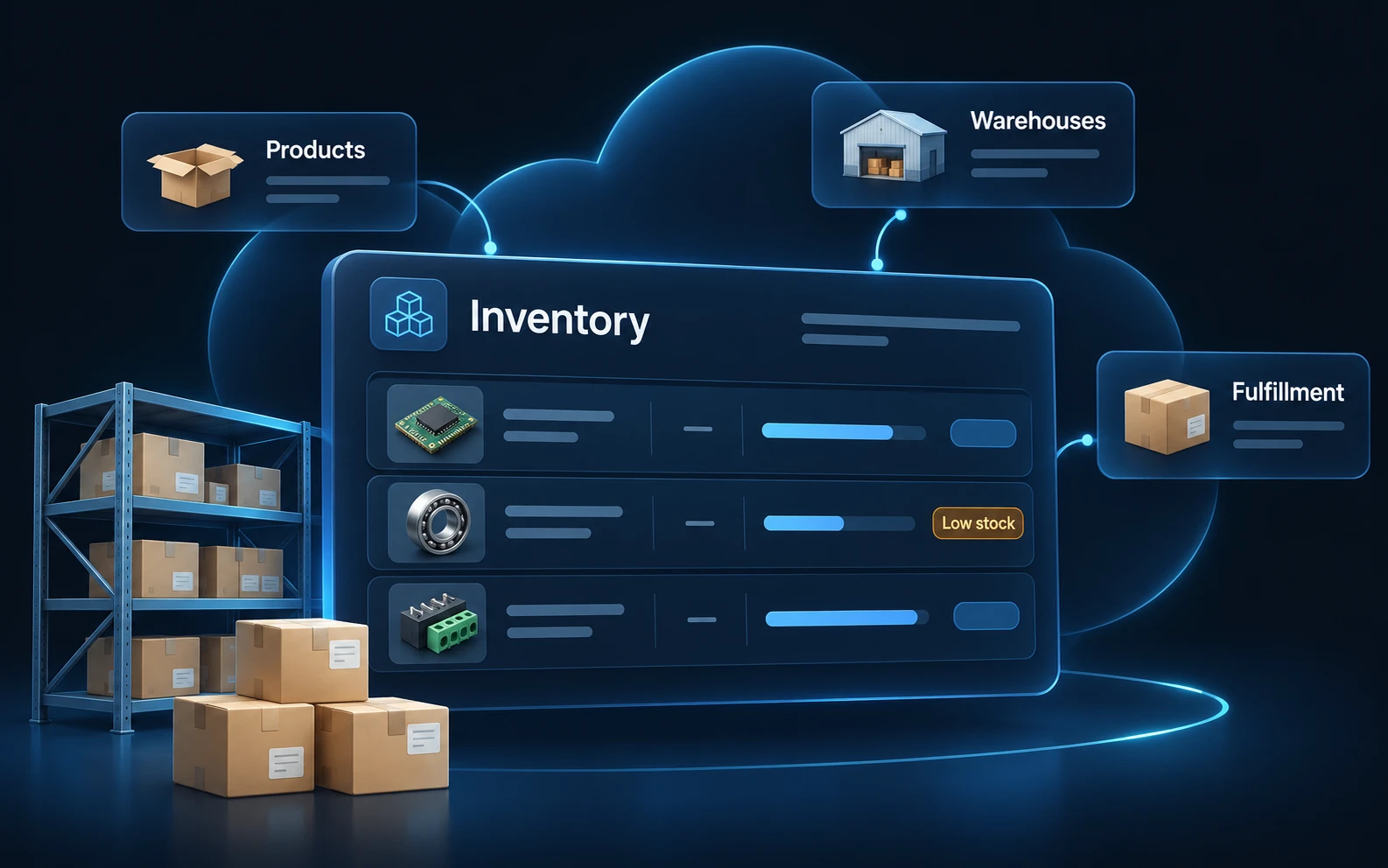
Inventory is the stockroom of your Capitas Cloud app. Each stocked item is a part or product with its own number, unit, barcode, category, vendor and reorder levels. For each one you see how many are on hand, how many are promised to jobs, how many are available, what one costs on average and what the stock is worth.
Stock lives where you keep it. Define warehouses, then aisles, shelves and bins inside them, with the code printed on your shelf label. A small shop can start with one warehouse and one bin; a larger operation can map every shelf. A location that holds parts cannot be deleted, so nothing disappears by accident.
Nothing is edited behind your back. Every receipt, issue, return, adjustment, count and transfer is a movement in a history that is never rewritten. A mistake is corrected with another movement that says why, so you can always see how a number came to be.
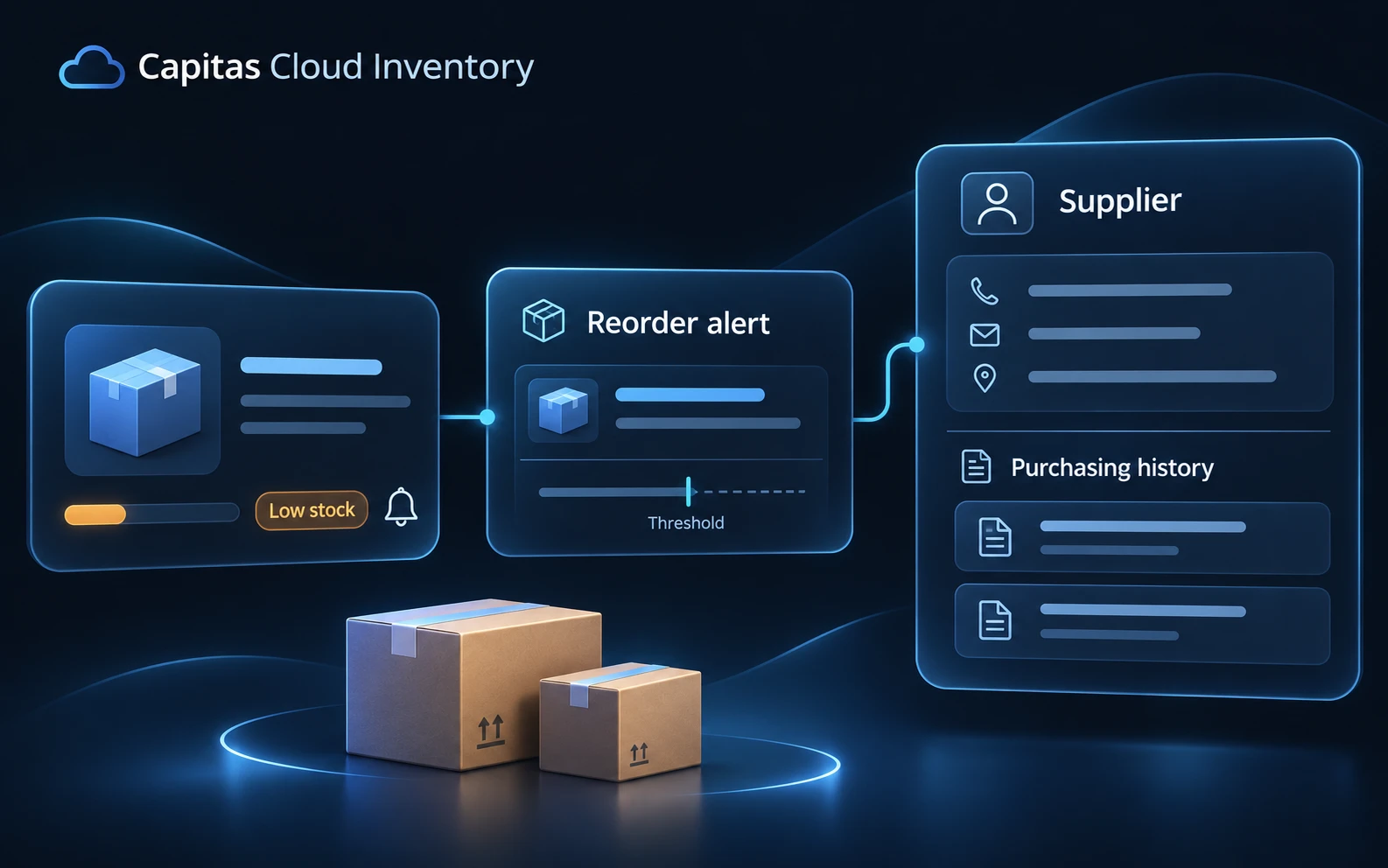
It buys as well as counts. Parts at or below their reorder point appear on a low-stock list, one click drafts purchase orders for each vendor, and receiving the delivery puts the stock on the shelf, updates the cost and records what you owe.
Map where everything is kept, with a printed label code for each place, a default receiving location and stock tracked at every one.
Part number, vendor part number, barcode, unit of measure (each, kilos, litres, metres), category, a fits note and selling price.
Record what comes in at what cost, what goes out and what comes back. Adjustments require a reason, such as damaged, lost or found.
Count a location, enter what you actually have, and the difference is recorded as a movement while the count date is kept.
Move stock from one place to another in a single step. The total never changes and neither does the cost.
Set a reorder point and a level to order up to. The low-stock list shows how many to order, counting what is already on order.
Draft, send and receive orders by vendor, with partial deliveries, packing-slip references and freight shared over the parts as they arrive.
Keep each vendor's contact, your account number and payment terms, plus which suppliers sell a part, their part number, lead time and minimum quantity.
Each receipt updates the average cost, issues are valued at the average at that moment, and you can see what the stock is worth.
Every movement shows who, when, how many, the quantity afterwards and the value, tied to the repair order, purchase order or count behind it.
Receipts, issues, returns and adjustments post to your ledger: parts inventory, cost of parts, accounts payable and shrinkage.
Costs are hidden from roles that should not see them, and purchase orders are for people who may see costs. Stock changes are limited to your team.
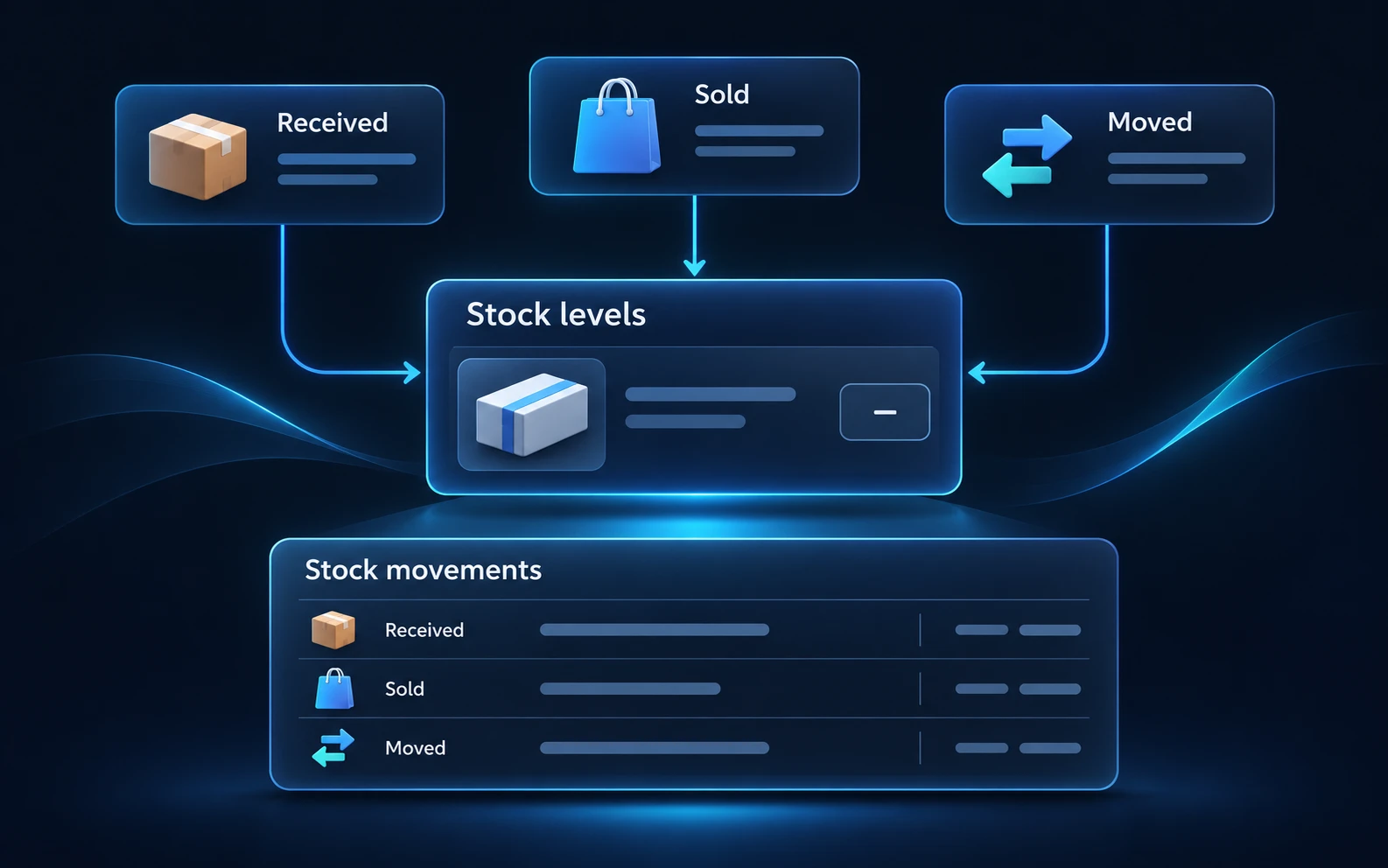
Stock, average cost and history are written together in one step, so they cannot disagree, and a retried action is never counted twice.
The low-stock list tells you what to order, how many, and from whom, before a job or a customer is waiting.
Available stock is what is on hand minus what is already promised, so a part is not committed twice.
Counts record only the differences, and one click turns what is low into draft purchase orders per vendor.
Freight is shared over the parts it brought in, so the cost of a part includes what it took to get it.
Movements post to your ledger, so the value of the stock matches the inventory account.
Nothing is overwritten. Corrections are new movements with a reason, which makes audits and investigations simple.
Begin with one warehouse and one bin, and grow into aisles, shelves and bins when you need them.
A permanent history of who moved what, when and why.
Draft orders per vendor, counting what is already on order.
Receipts, issues and adjustments post to your accounts.
Results depend on your business, how carefully stock is received and counted, and how you use the add-on. Capitas Cloud shows what your own records say is on hand; it does not replace counting.
Service Shop is where Inventory connects most directly today. The same parts, locations, vendors, purchase orders and history serve any business that buys and keeps stock. For the others below, these are examples of what you can keep and track: you receive, issue, count and adjust the stock, and everything is recorded the same way.
The part picker on a repair order shows what is available, approved parts are promised to the job, and invoicing takes them out of stock all at once. If a part is short, the invoice is refused with a clear message instead of leaving the numbers wrong.
For example fasteners, fixtures, fittings and materials kept at the yard or in the truck, received against purchase orders from your suppliers, with the cost of what you buy on record.
For example the parts and consumables your technicians carry and the stock at your depot, moved between locations and counted so the van is ready for the next call.
For example raw materials and components in kilos, litres or meters, received at cost, counted and moved between storage areas, with reorder points so you do not run out mid-run.
For example products you sell and the supplies you use, such as color, polish and treatment products, with reorder levels and vendors so the chair is never waiting on a product.
For example maintenance supplies and spare parts kept for your properties, such as filters, fixtures and paint, so the next work order starts with what is on the shelf.
Every Capitas Cloud app and add-on shares the same customers, catalog and data. Inventory works with these to save more time and turn more visitors into revenue.
Book a presentation and we will show you Inventory with your own parts, locations and vendors, or ask for your free dynamic website design with your catalog built in.
Live sites running on Capitas Cloud tools. Scroll inside a card to explore it, or use Open site to view it in a new tab.
 Baseline Motion Tennis
Open site (opens Baseline Motion Tennis in a new tab)
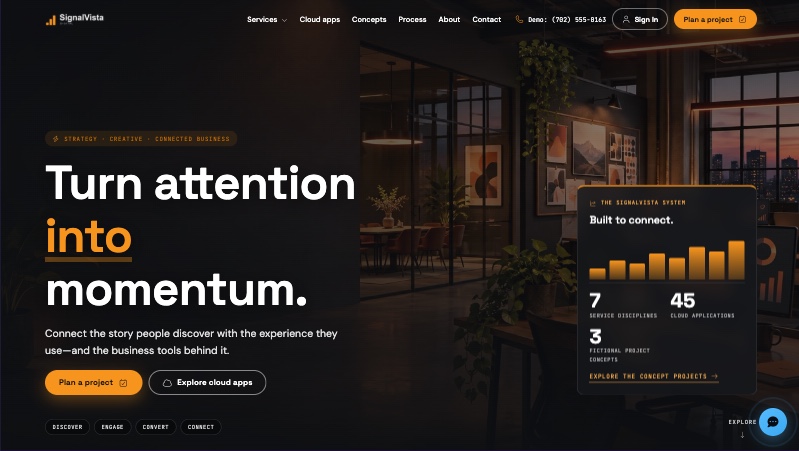 Signal Vista Digital
Open site (opens Signal Vista Digital in a new tab)
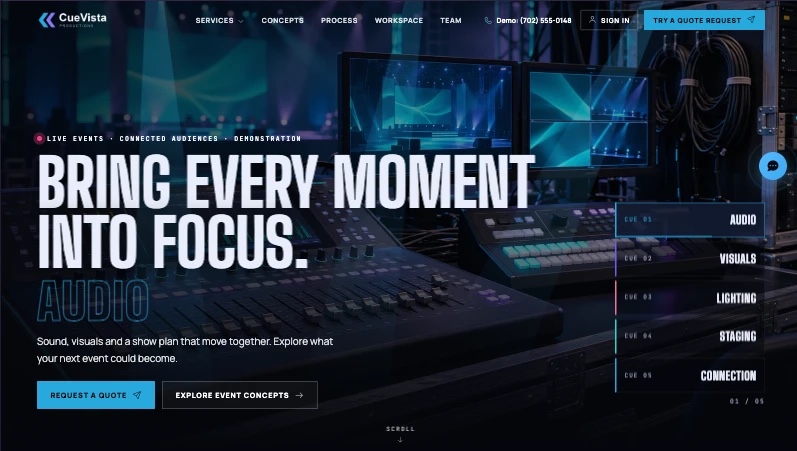 Cue Vista Productions
Open site (opens Cue Vista Productions in a new tab)
Tell us about your business and we will design a dynamic website with your Capitas Cloud tools, free until you are completely satisfied. You will see it running in our studio domain before you approve it and move it to your domain.
We are working on your free dynamic website design. We will send you an email when it is ready, so you can see it running before you approve it.