Invite by email
Enter a name, email and job role and the invitation is sent. You also get a link to share yourself. It works once, for 7 days, and can be resent or cancelled.
Invite your team, give each person a job role, and decide section by section what they can see, change or approve. When people join, move or leave, you adjust access in one place, and every change is on the record.

User Management is the Team page of your Capitas Cloud dashboard, included in every account. It shows who works with you, what each person can open and do, and who receives your chats, orders, appointments and estimate requests. It has three tabs: People, Roles and Activity.
Access starts with a job role: Owner, Manager, Service advisor, Technician, Parts and counter, Bookkeeper, Front desk and sales, Marketing or Read only. A role is a starting point. For any person you can adjust the level in each section of the dashboard, from Overview, Customers and Orders to Inventory, Ledger, Blog, Analytics and the Team itself.
Each section has four levels: None, View, Edit and Full. A section a person cannot open does not even appear in their menu, and the server refuses the request if they try to reach it another way. Costs and prices can stay hidden from the roles that should not see them.
People come in by invitation. They receive a single-use link, choose their own password and sign in as themselves, so there are no shared logins. When someone leaves, you suspend or remove them: they cannot sign in any more, and their work stays in your books and history.

Enter a name, email and job role and the invitation is sent. You also get a link to share yourself. It works once, for 7 days, and can be resent or cancelled.
Owner, Manager, Service advisor, Technician, Parts and counter, Bookkeeper, Front desk and sales, Marketing and Read only, each a ready-made set of access.
None, View, Edit or Full for each section, such as Customers, Orders, Chat, Appointments, Estimate requests, E-signatures, Service shop, Inventory, Ledger, Blog, SEO, Advertising, Analytics and Team.
Choose who receives chats, who receives order notifications, who is the estimator for estimate requests, and who dispatches appointments.
Roles such as technician and front desk do not see purchase costs, and purchase orders are for people who may see them.
Suspend a person and they are signed out and cannot sign in until you reactivate them, with everything kept as it was.
Send a single-use link so a person can choose a new password, without anyone ever sharing one. Passwords need 12 characters with upper and lower case, a number and a symbol.
A removed person can no longer sign in and their seat is released, while their work stays in the books and the history.
The Activity tab lists who changed what and when, so access changes are never a mystery.
An owner can download a CSV of who can open what, ready for a review, an audit or your own records.
Closing the books, managing owners and managers, the plan and billing, connecting mail, advertising and payment accounts, and deleting website data cannot be delegated.
The team list shows your seat count, and you are told when an invitation takes you beyond the seats in your plan, and confirm before it does.

Sensitive areas such as the books, costs and subscriptions stay with the people who need them.
Pick a role, send the invitation and the right access is ready when they sign in.
Everyone has their own sign-in, so actions belong to a person, not to "the front desk login".
Managers can run the team below them, nobody can give away more access than they have, and the last owner cannot be removed or lowered.
The activity history shows who changed whose access and when.
Suspend or remove a person in one step and keep the work they did.
Start from a role, then adjust any section for the one person who needs more or less.
User Management is part of every Capitas Cloud account.

Choose a role, send an invitation, and they set their own password.
Roles, sections, duties and suspensions from the same page.
An activity history of who changed what, plus a downloadable access report.
Results depend on your business and how you set up your team. Access rules protect what is in your Capitas Cloud app; they do not replace good practice such as removing people promptly when they leave.
The job roles are starting points, not boxes. Whatever you run, give each person a role close to what they do, then adjust the sections. Here is how some common roles map to real jobs.
The owner has everything, including what cannot be delegated. A manager runs the business day to day and can invite and manage people below manager level.
In a Service Shop the advisor checks vehicles in, writes estimates and gets approvals, while the technician works the jobs assigned to them without seeing prices.
Full access to Inventory and purchasing, with the counter and customer orders, and nothing in the books.
Full access to the ledger, journal and balance sheet, with read access to the customer and order records they need.
Customers, chat, appointments, estimate requests and e-signatures, without costs or accounting.
Images and videos, blog, newsletter, SEO, advertising and the AI Concierge, without access to orders or the books.
Look at everything except the team and subscriptions, and change nothing: useful for an advisor, an auditor or a new hire.
Every Capitas Cloud app and add-on shares the same customers, catalog and data. User Management decides who can use each of them.
Book a presentation and we will set up your roles with you, or ask for your free dynamic website design with your sign-in and team areas built in.
Live sites running on Capitas Cloud tools. Scroll inside a card to explore it, or use Open site to view it in a new tab.
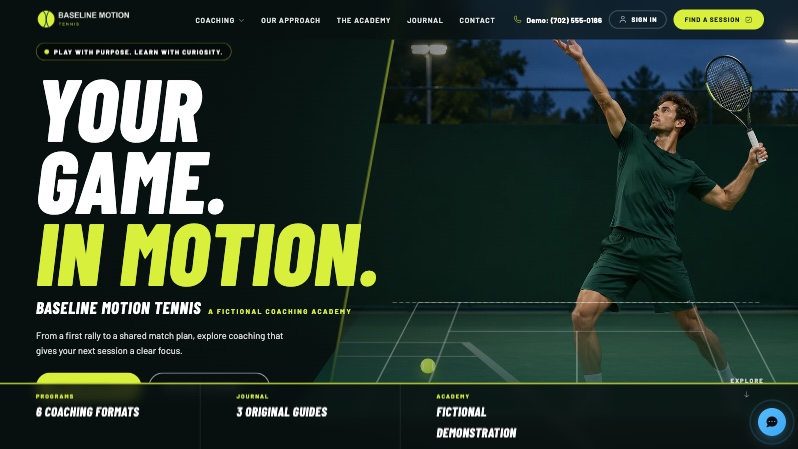 Baseline Motion Tennis
Open site (opens Baseline Motion Tennis in a new tab)
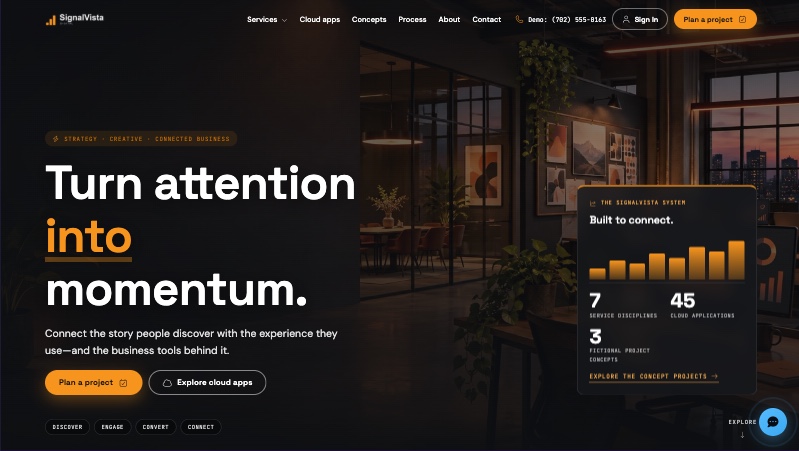 Signal Vista Digital
Open site (opens Signal Vista Digital in a new tab)
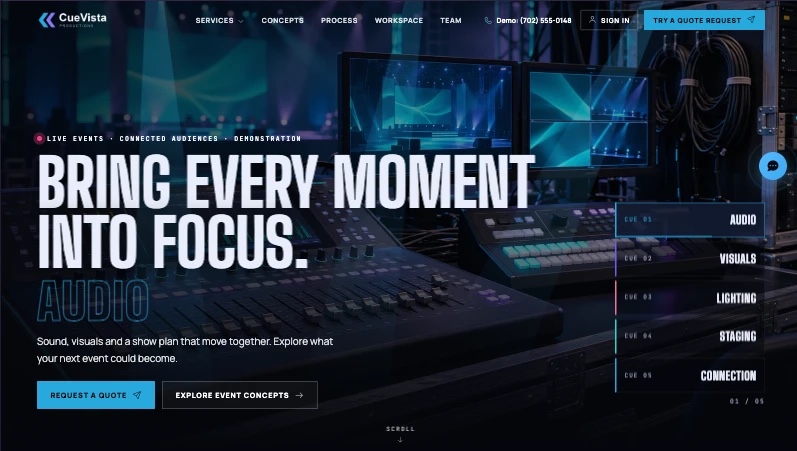 Cue Vista Productions
Open site (opens Cue Vista Productions in a new tab)
Tell us about your business and we will design a dynamic website with your Capitas Cloud tools, free until you are completely satisfied. You will see it running in our studio domain before you approve it and move it to your domain.
We are working on your free dynamic website design. We will send you an email when it is ready, so you can see it running before you approve it.